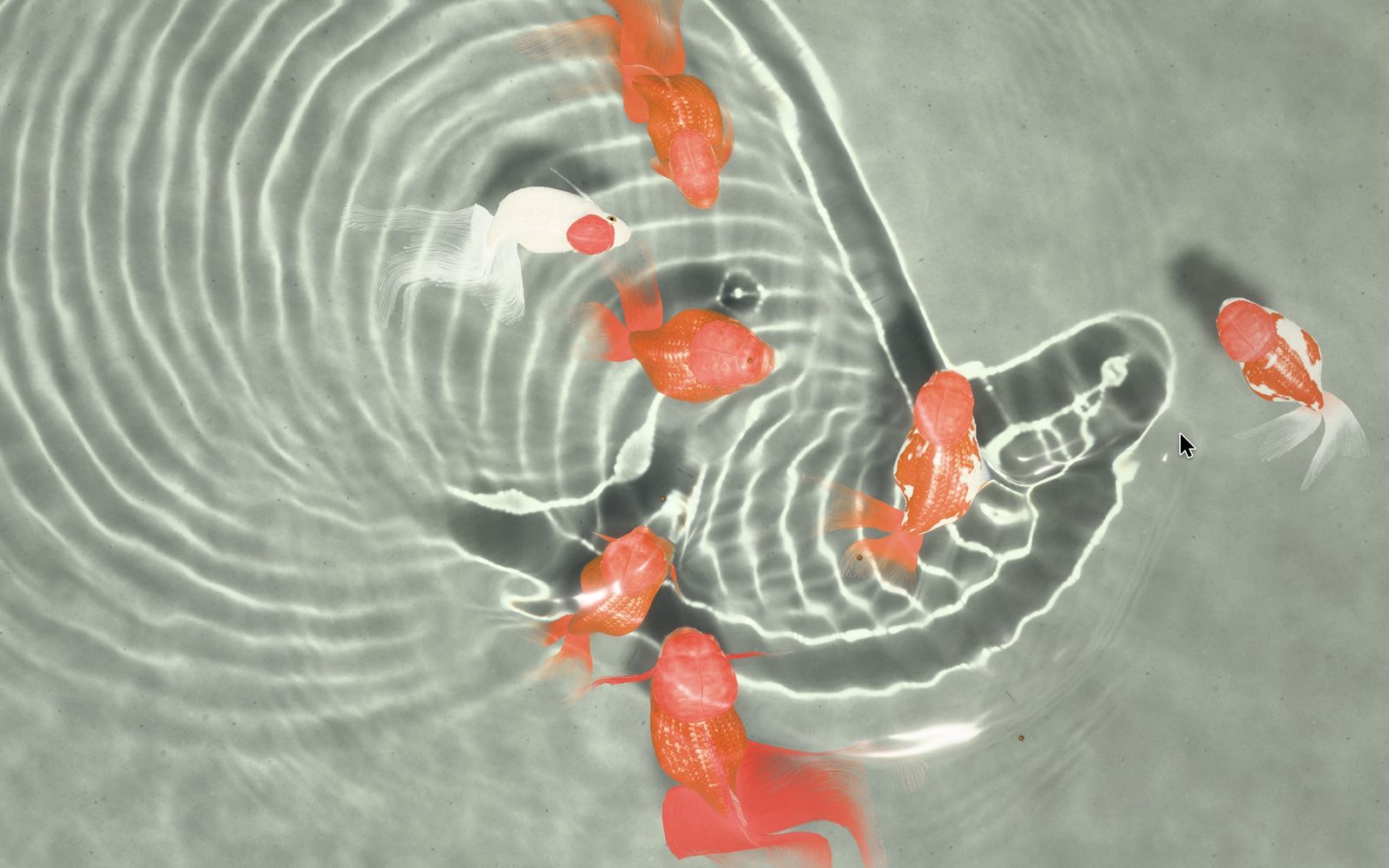
Goldfish window
Resizable and ready for full screen, perfect for a second display. Move the pointer to stir the water, click to drop a pebble and double-click to feed the goldfish.
 Lucky Goldfish
Fancy goldfish in living water, on Mac, iPhone and iPad
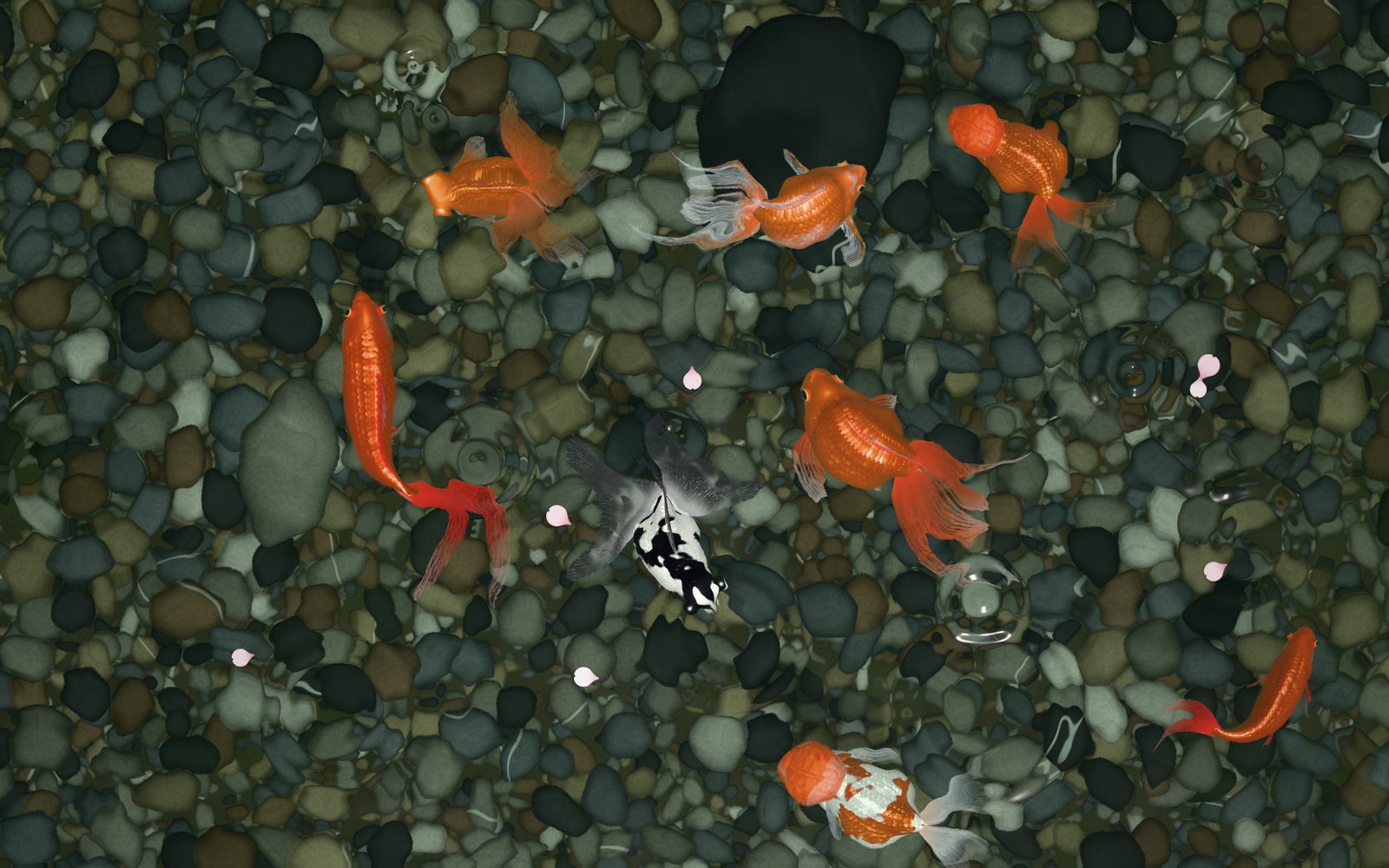
Sunlight wavers across the glaze of a blue-and-white jar, the breeze ruffles the water, an oranda’s veils billow and a ranchu waddles past. On the Mac, keep them in a window or beneath your desktop icons. On iPhone and iPad, draw a finger through the water and feed them with a tap.
On the Mac
Whether you are working, taking a break or away from your Mac, your goldfish are never far away.
Resizable and ready for full screen, perfect for a second display. Move the pointer to stir the water, click to drop a pebble and double-click to feed the goldfish.
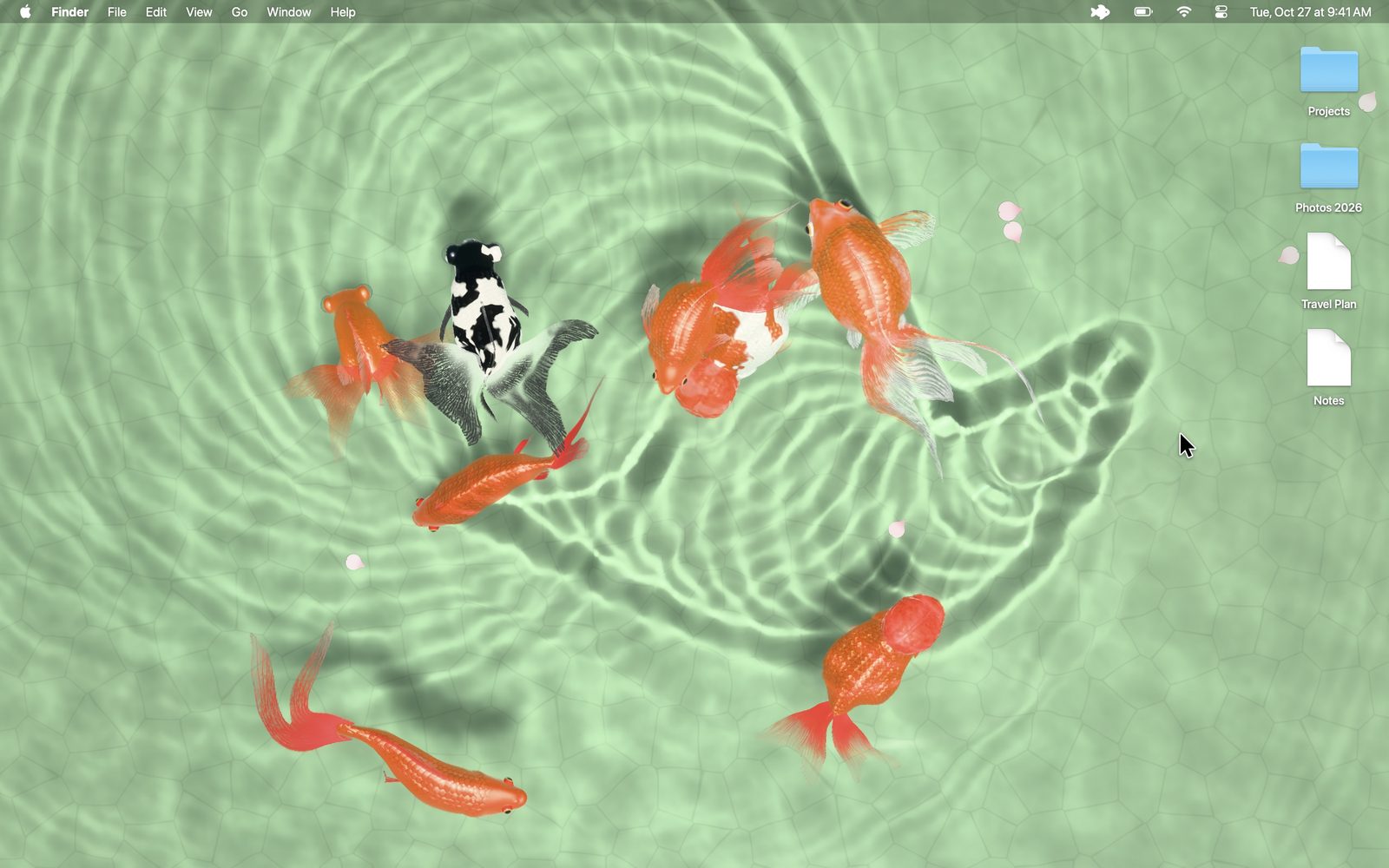
Goldfish swim beneath your desktop icons on every display and Space, and the pointer stirs the water as it passes. The Finder works as always, and the goldfish rest while windows cover them.
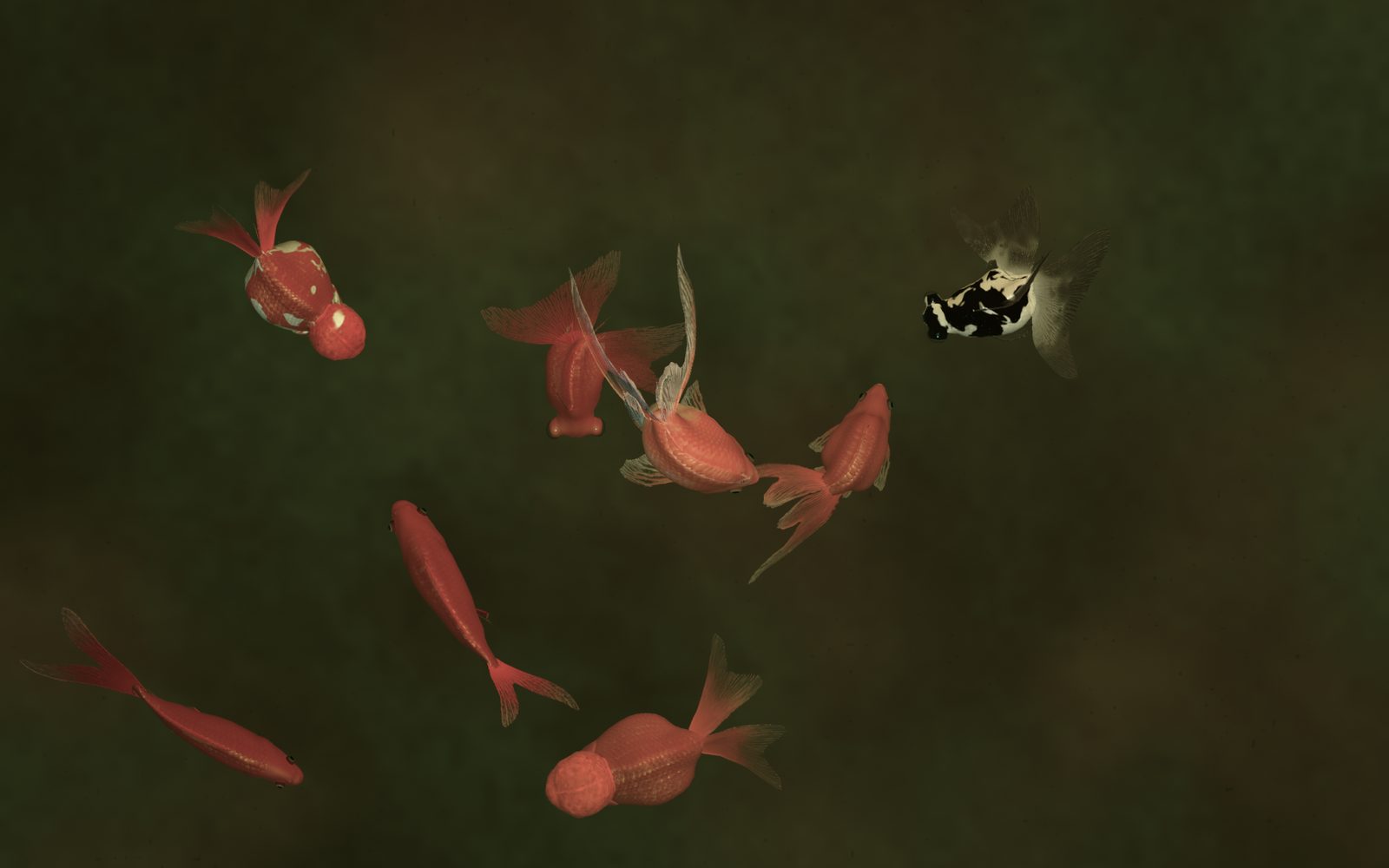
When your Mac is idle, the goldfish fade in on every display. Any key or mouse movement brings your desktop back.
On iPhone and iPad
The same water and the same goldfish, made for touch, on every iPhone from the iPhone 8 on and every iPad with iPadOS 16. Buy it once, and it is yours on Mac, iPhone and iPad.
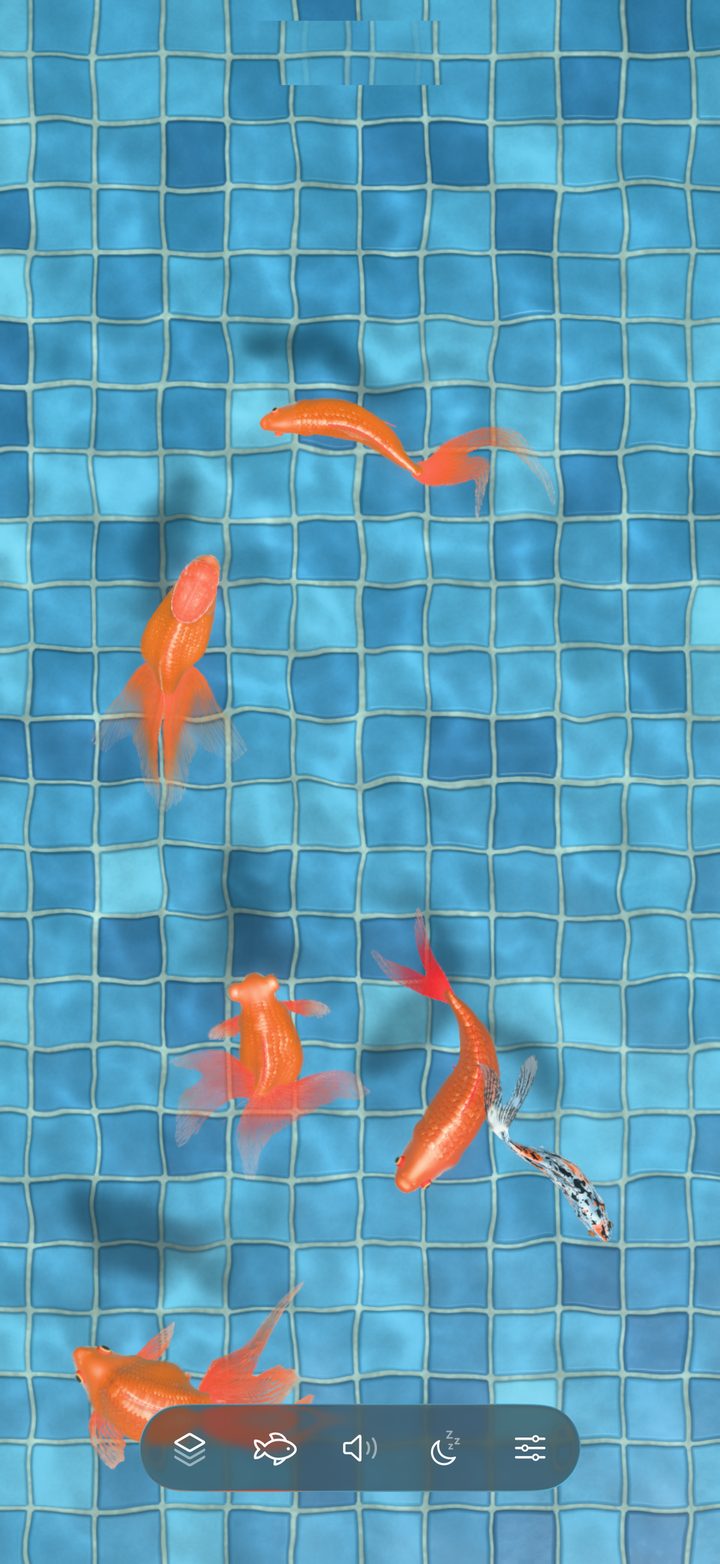
Draw a finger through the water and the ripples follow it. Tap to drop a pebble, tap twice to scatter food, and hold your finger still to call the goldfish; through the glass of an aquarium, they come to the finger on the glass. Pinch to make them larger or smaller. The buttons fade away while you watch.
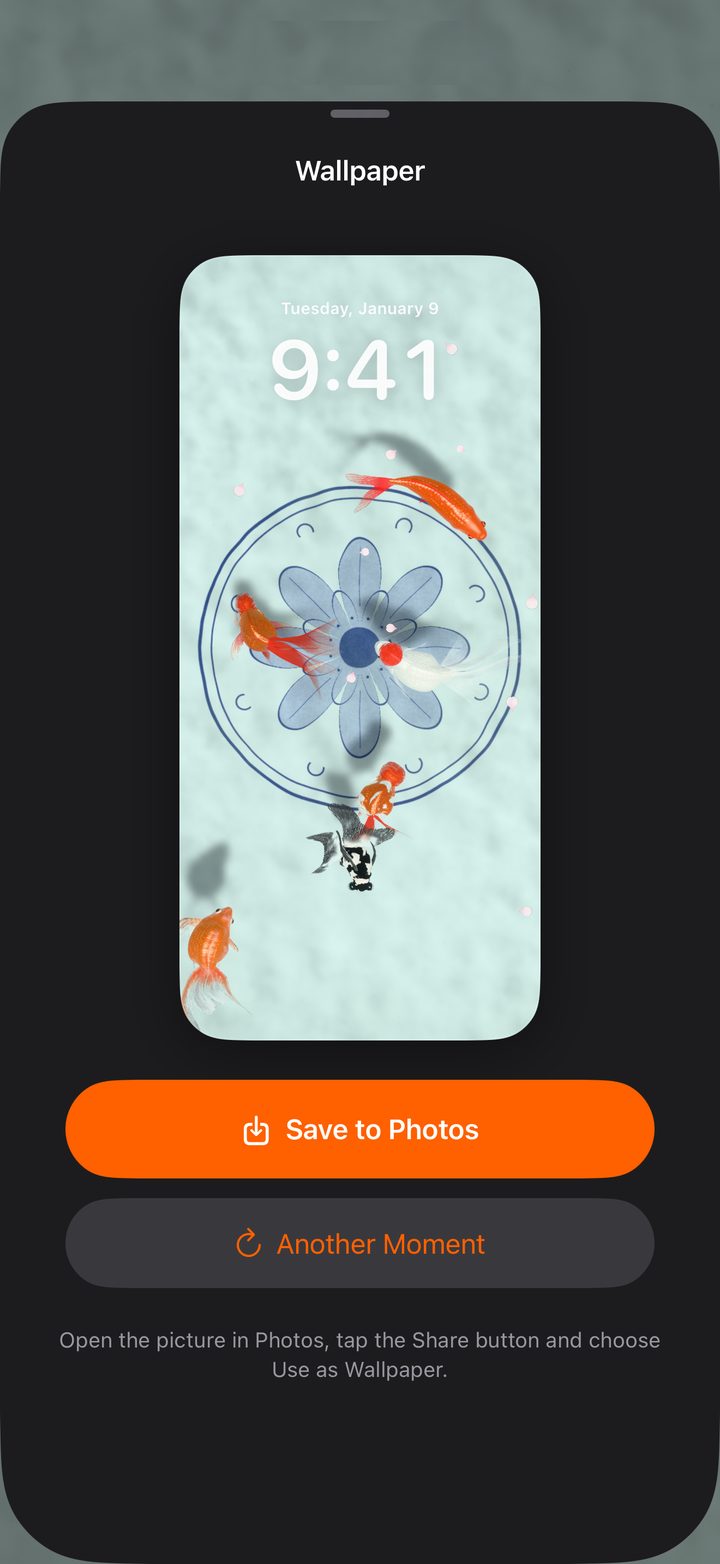
Turn this very moment into a picture for the Lock Screen and Home Screen, at the full resolution of your screen. Another Moment shows the goldfish somewhere else.
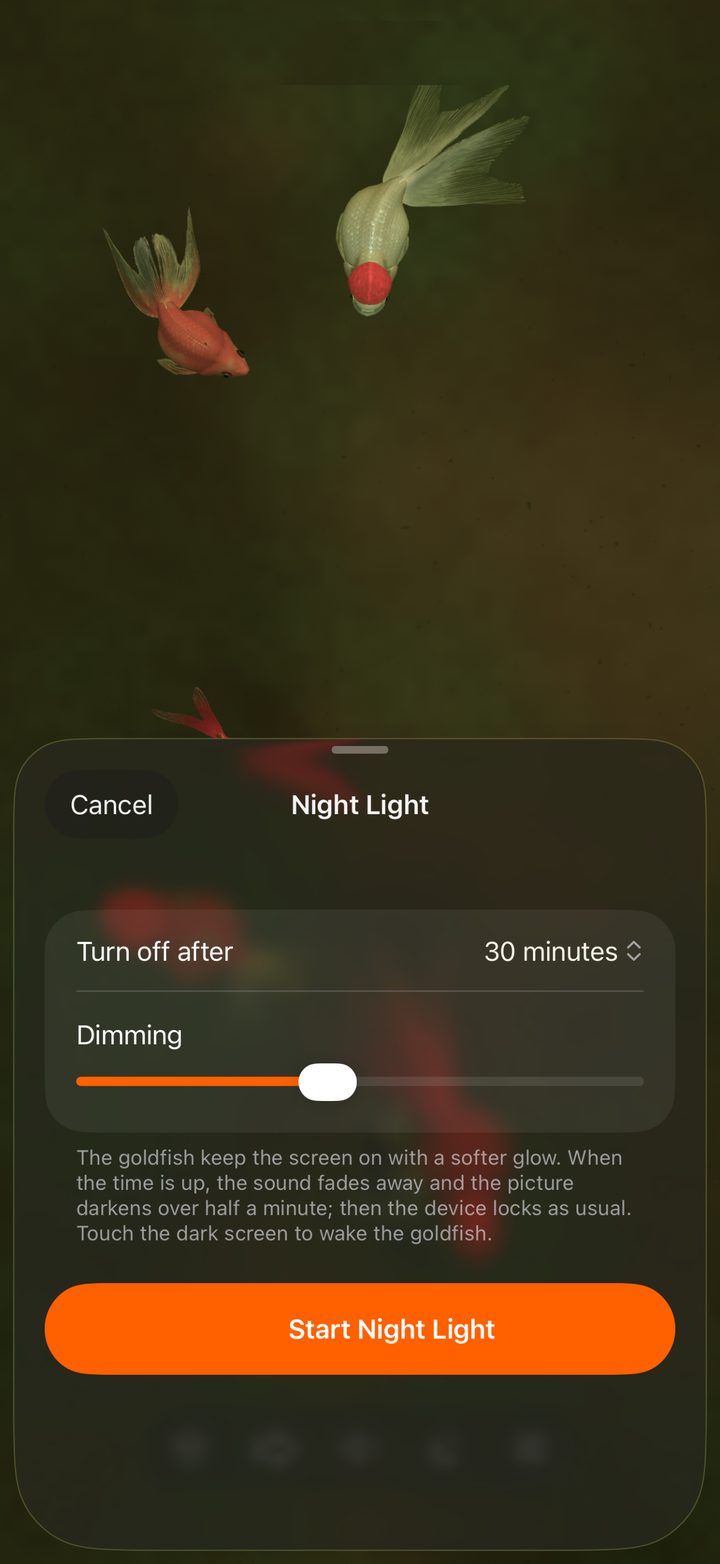
The goldfish keep you company with a softer glow. When the time you chose is up, the sound fades away, the picture darkens over half a minute and the device locks as usual.
On iPad the goldfish fill the larger screen, upright or sideways. Apple Pencil and the pointer stir the water as they hover, and a keyboard feeds the goldfish (F), mutes them (M) and pauses them (space bar).
If you like, the sound plays on while your iPhone or iPad is locked, alongside your music: rain, trickling water and crickets through the night.
Varieties
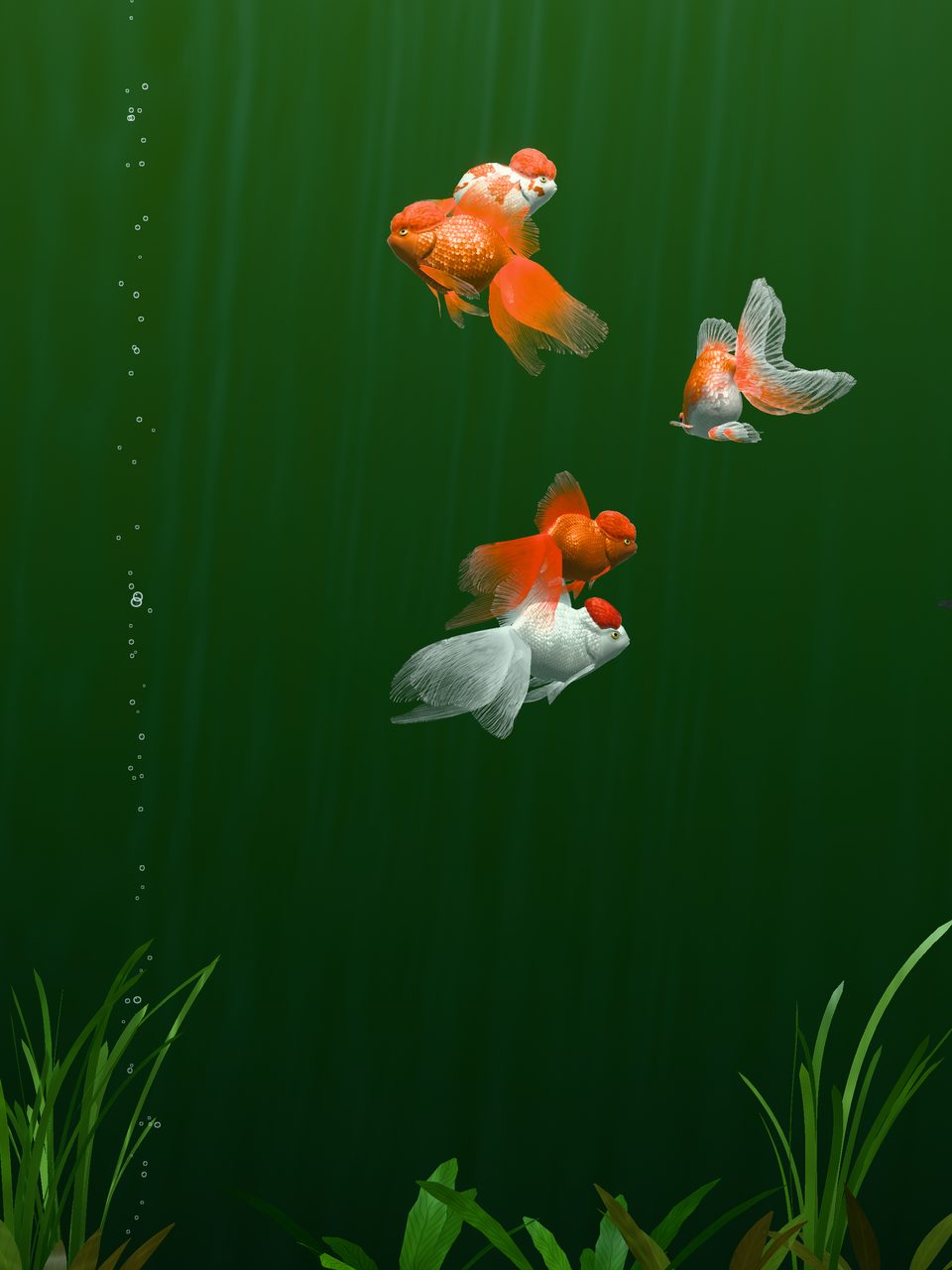
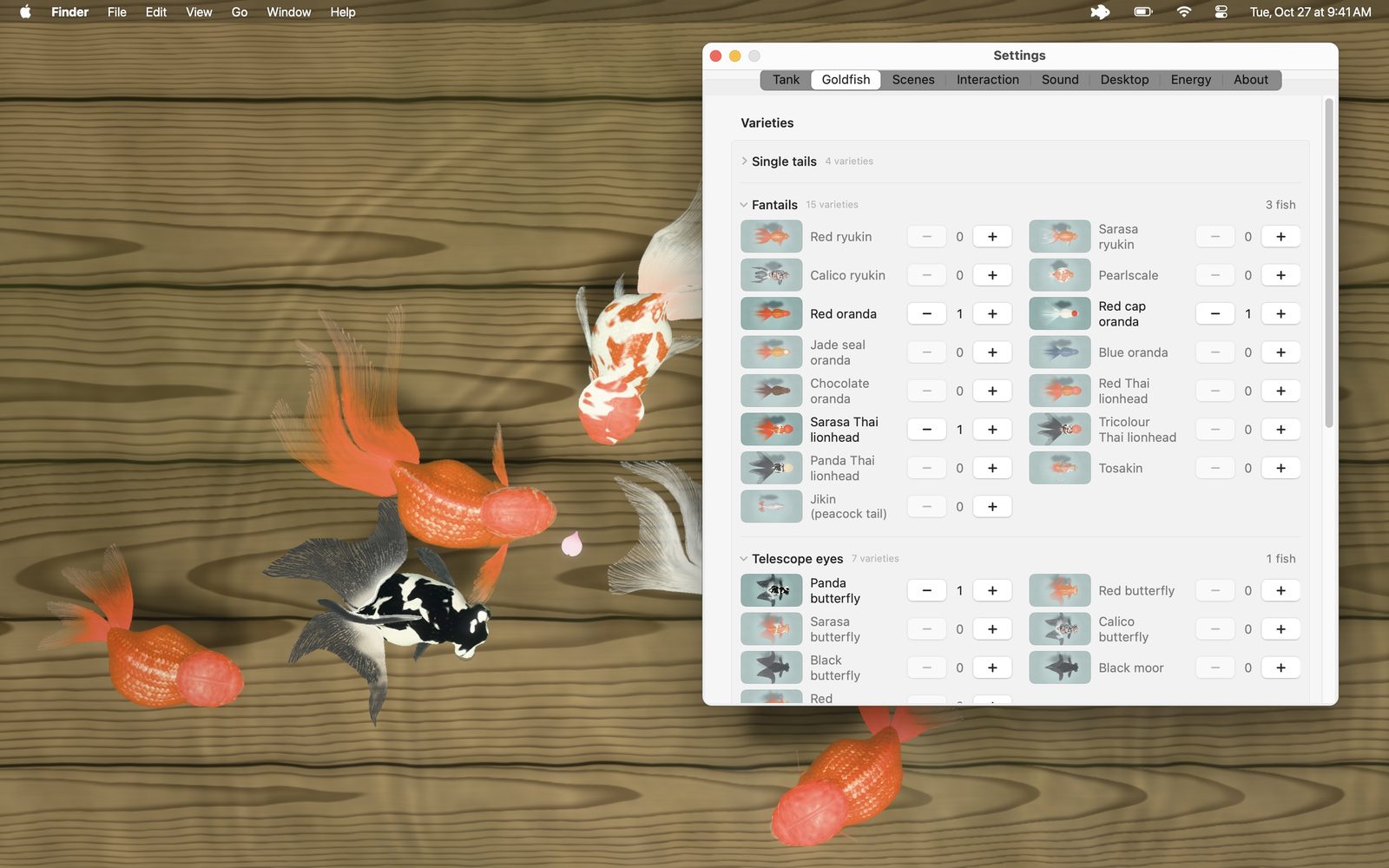
Single tails, fantails, telescope eyes and egg fish: the common goldfish, the comets and the shubunkin; ryukin, pearlscale, orandas, Thai lionheads, the tosakin with its fan of a tail and the jikin with its peacock tail; butterfly tails, black moors and telescopes; ranchu, bubble eyes and celestial eyes.
Every breed has its own body, head growth, eyes and fins, and swims its own way: the comet darts, the oranda sways, the ranchu rolls along without a dorsal fin. Choose how many of each you want, up to 30 fish. Every goldfish is patterned scale by scale, so no two are alike.
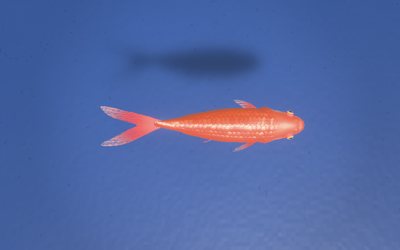 Common red
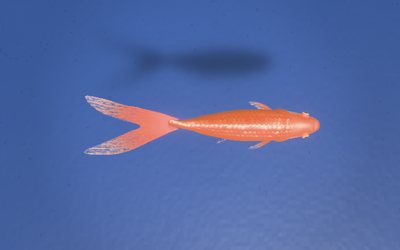 Red comet
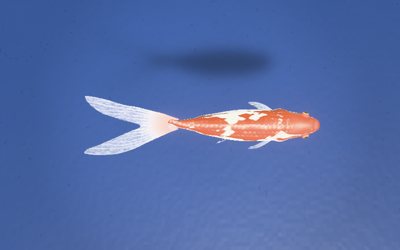 Sarasa comet
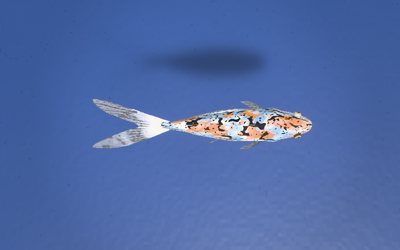 Shubunkin
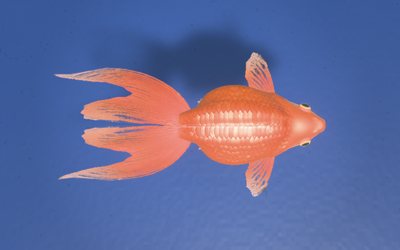 Red ryukin
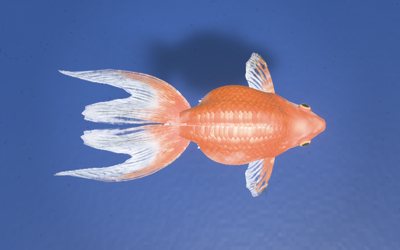 Sarasa ryukin
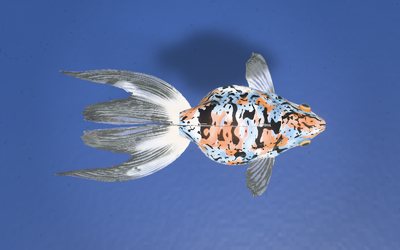 Calico ryukin
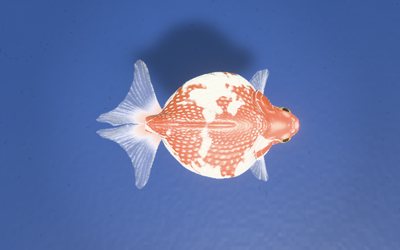 Pearlscale
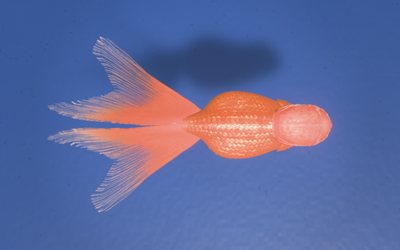 Red oranda
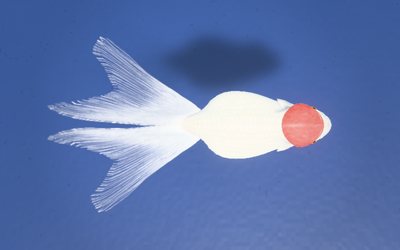 Red cap oranda
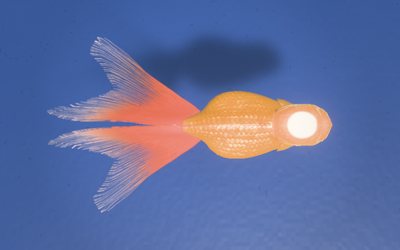 Jade seal oranda
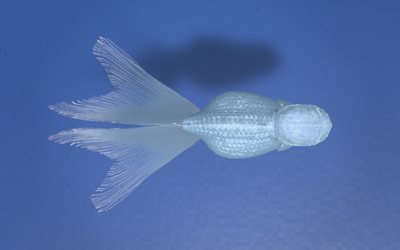 Blue oranda
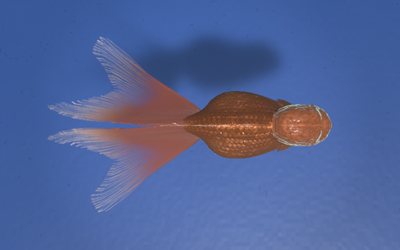 Chocolate oranda
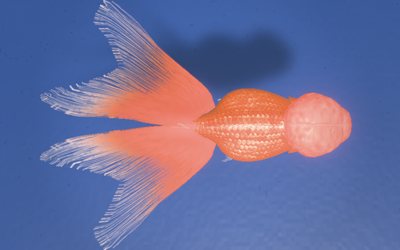 Red Thai lionhead
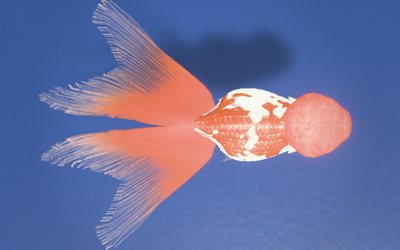 Sarasa Thai lionhead
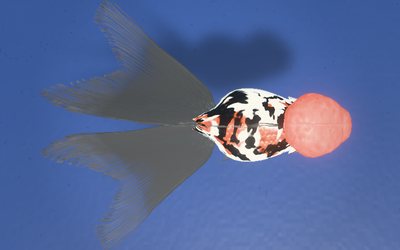 Tricolour Thai lionhead
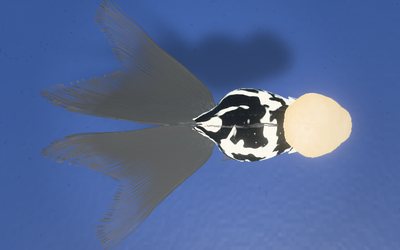 Panda Thai lionhead
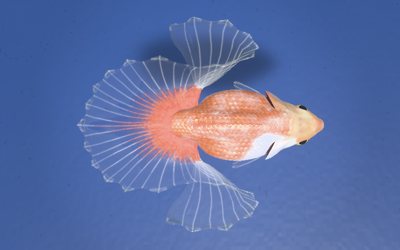 Tosakin
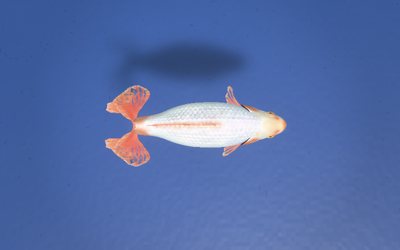 Jikin (peacock tail)
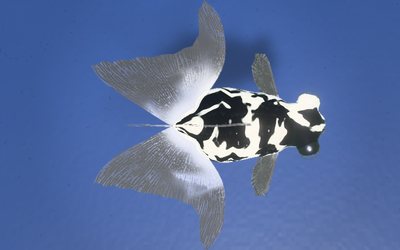 Panda butterfly
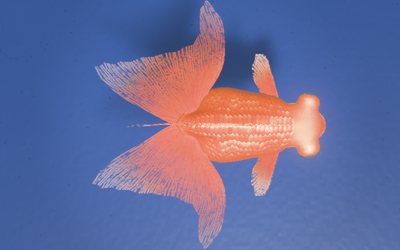 Red butterfly
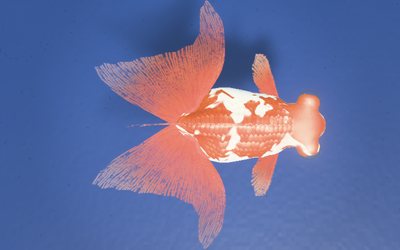 Sarasa butterfly
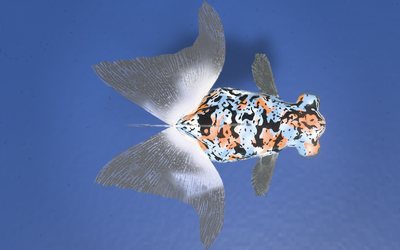 Calico butterfly
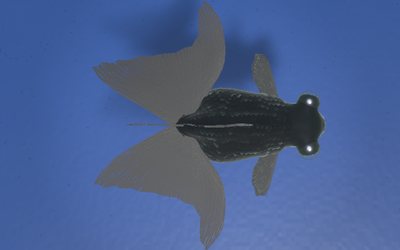 Black butterfly
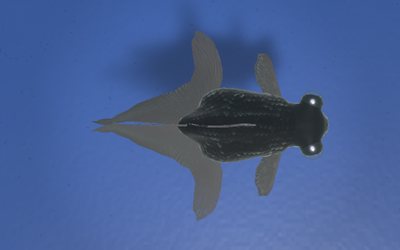 Black moor
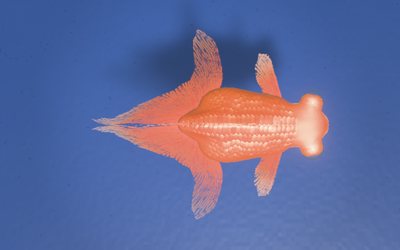 Red telescope
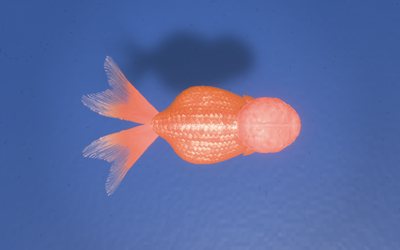 Red ranchu
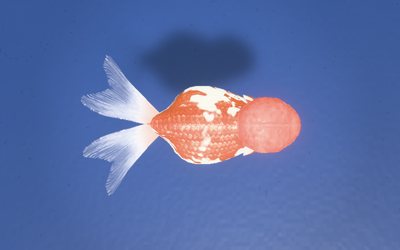 Sarasa ranchu
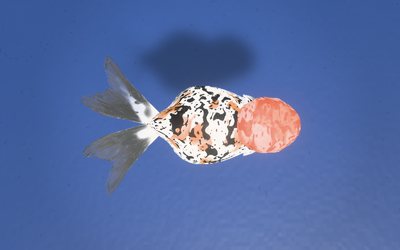 Calico ranchu
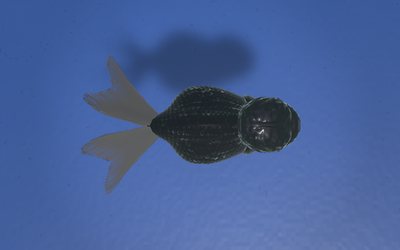 Black ranchu
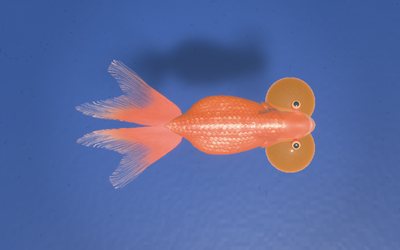 Red bubble eye
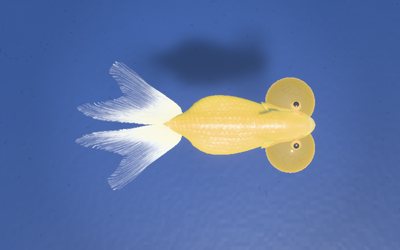 Yellow bubble eye
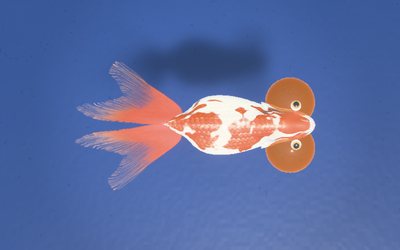 Sarasa bubble eye
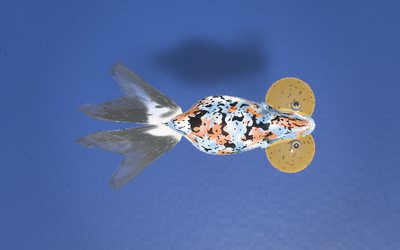 Calico bubble eye
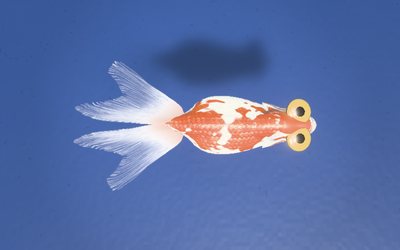 Celestial eye
Vessels
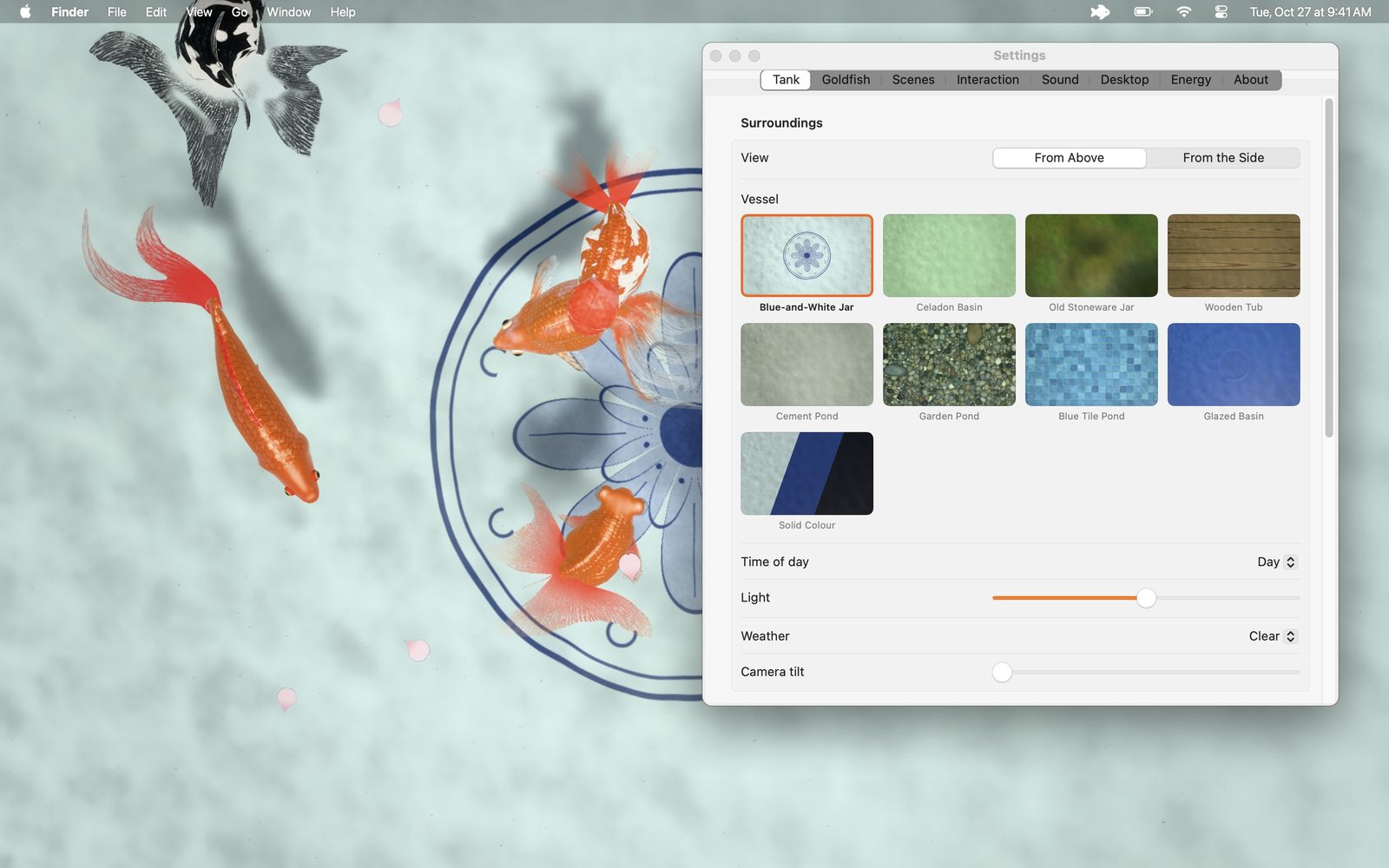
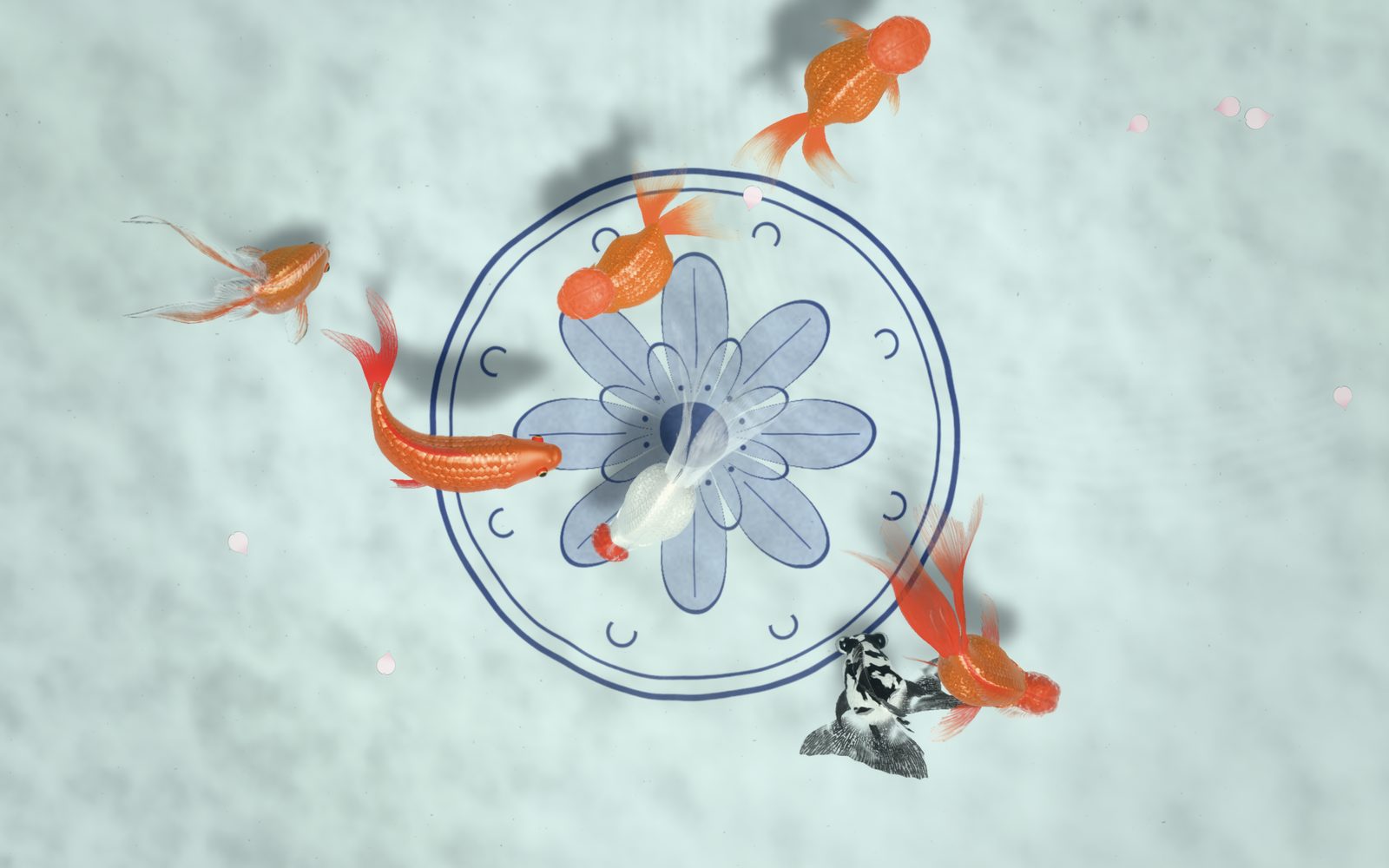
A blue-and-white porcelain jar, a crackled celadon basin, an old stoneware jar of green water as ranchu breeders keep them, a cedar tub, the cement pond of a goldfish farm, a small pond lined with blue mosaic tiles, a small garden pond with a bed of pebbles, a glazed basin in the colour of your choice, and a plain background in any colour. You look straight down into the water, so the bottom of the vessel fills the screen.

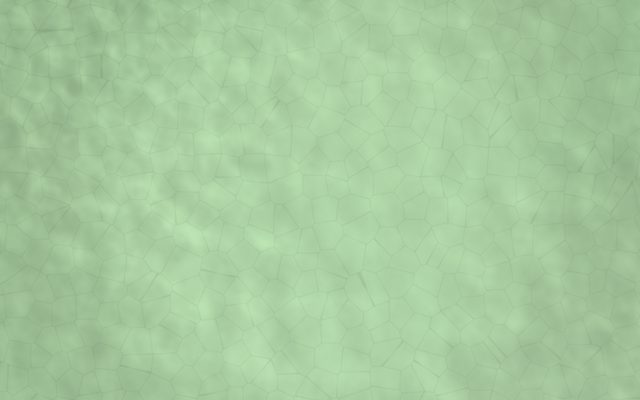


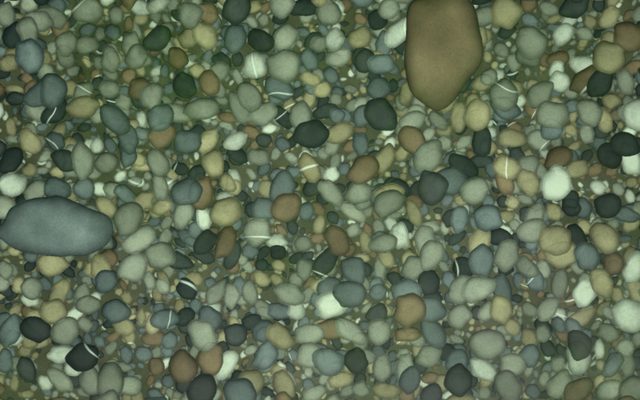
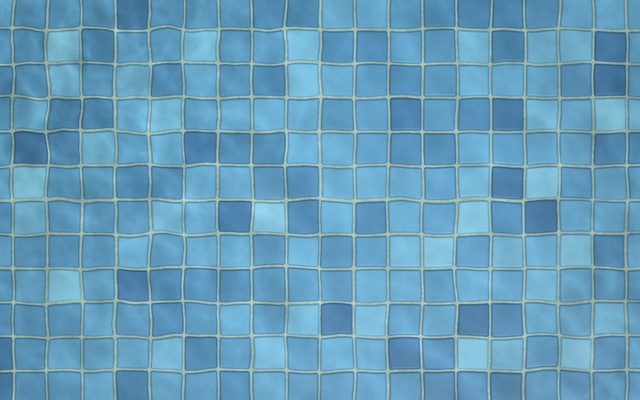

Dawn, day, dusk and night can follow your clock, with the glow of a lantern after dark. Adjust the light and the rain, let cherry blossom petals drift onto the water, and tilt the view.
Scenes
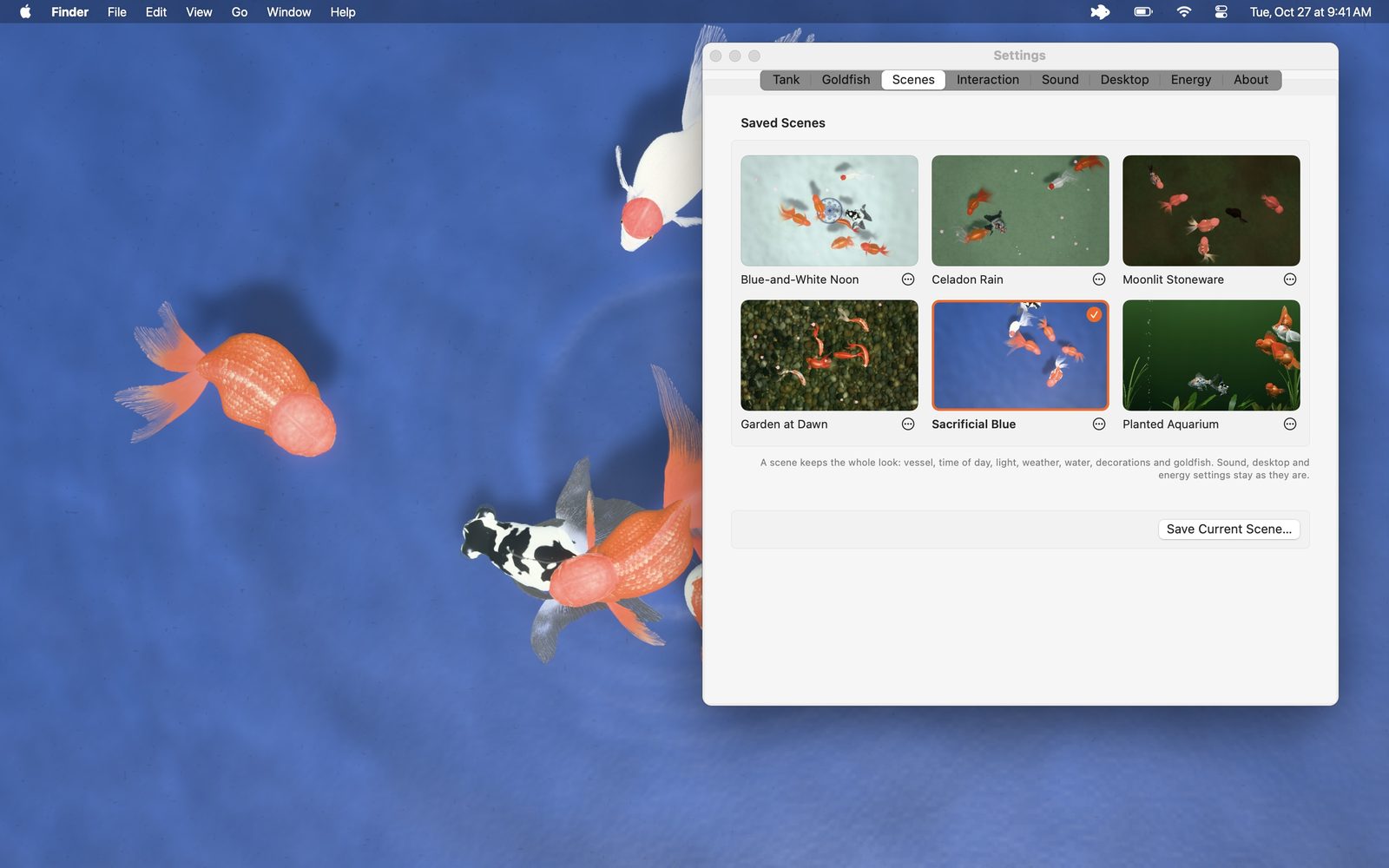
A scene keeps the whole look: the vessel or the aquarium and its colour, time of day, light, weather, water, decorations and goldfish. Switch between scenes in a click on the Mac, in Settings or from the goldfish in the menu bar, and with a tap on iPhone and iPad.
Wind waves follow the physics of real ripples, gusts sweep glittering wavelets across the surface, and sunlight refracts through the water to dance on the bottom of the vessel. You decide how clear the water is.
Trickling water, gentle showers and heavy rain, leaves rustling in the breeze, crickets on summer nights and the goldfish gulping and splashing at the surface, all synthesised live from the physics of real sound.
Film
Thirty seconds of goldfish on the Mac: the Settings window, the live wallpaper and screen saver mode, with the sound of the water.
Quiet and efficient
Drawn natively with Metal on Macs with Apple silicon and Intel processors, on iPhone and on iPad. Every device gets the quality it draws with ease.
The wallpaper pauses whenever it is covered, the screen is locked or the display sleeps. On battery power, in Low Power Mode or when a device warms up, the goldfish use less energy.
No account, no ads and no network access. Your settings and scenes stay on your device.
Gallery
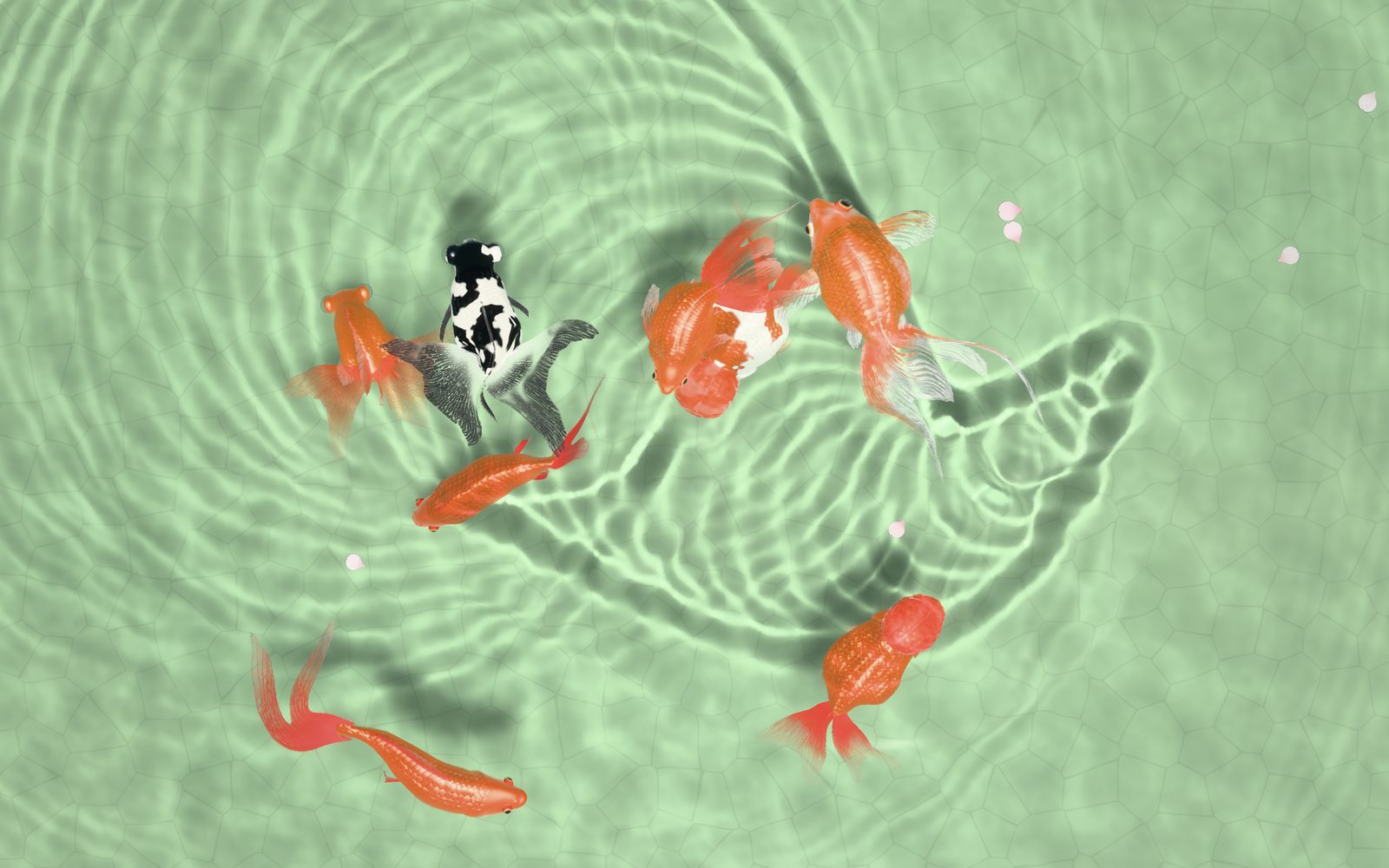
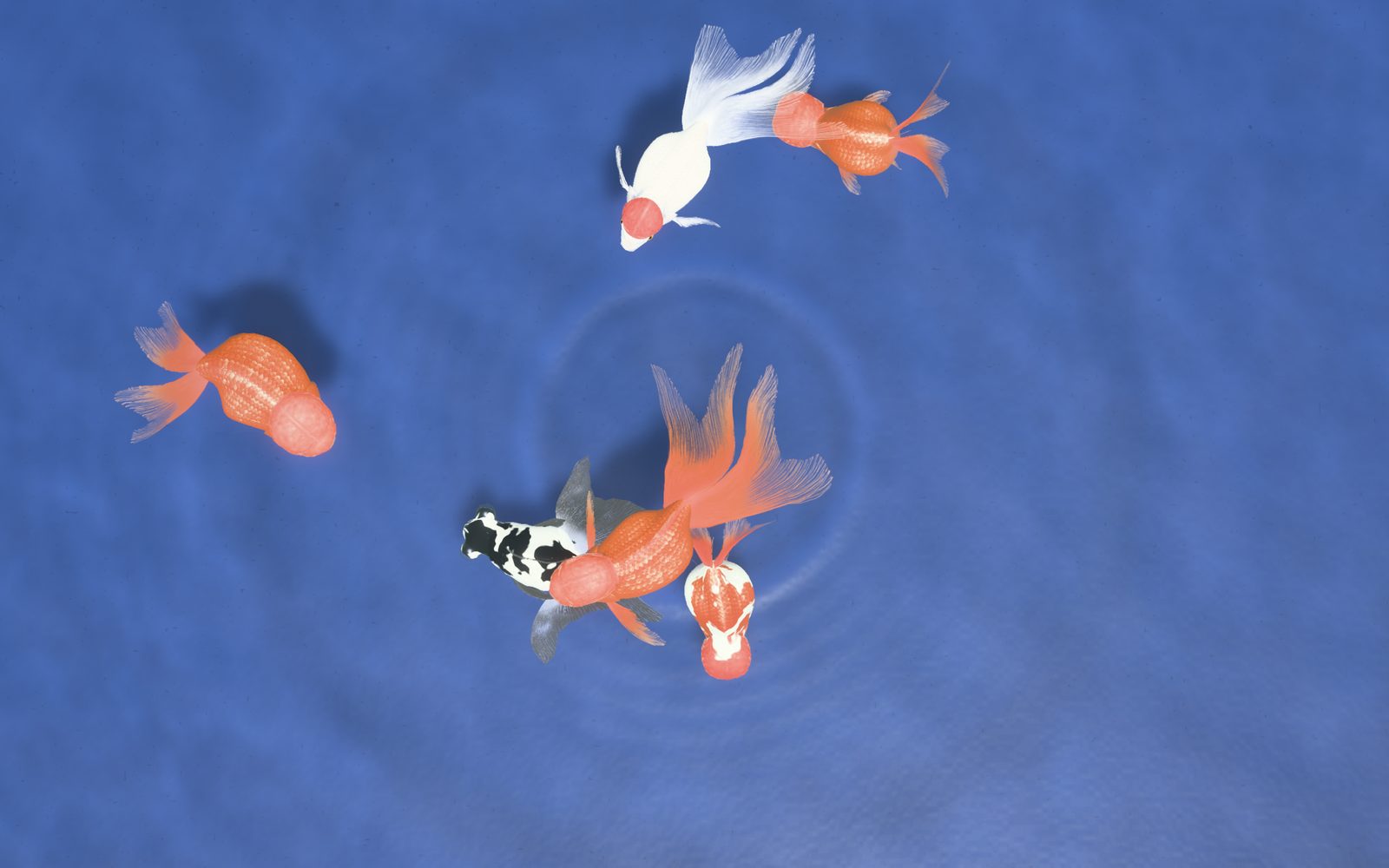
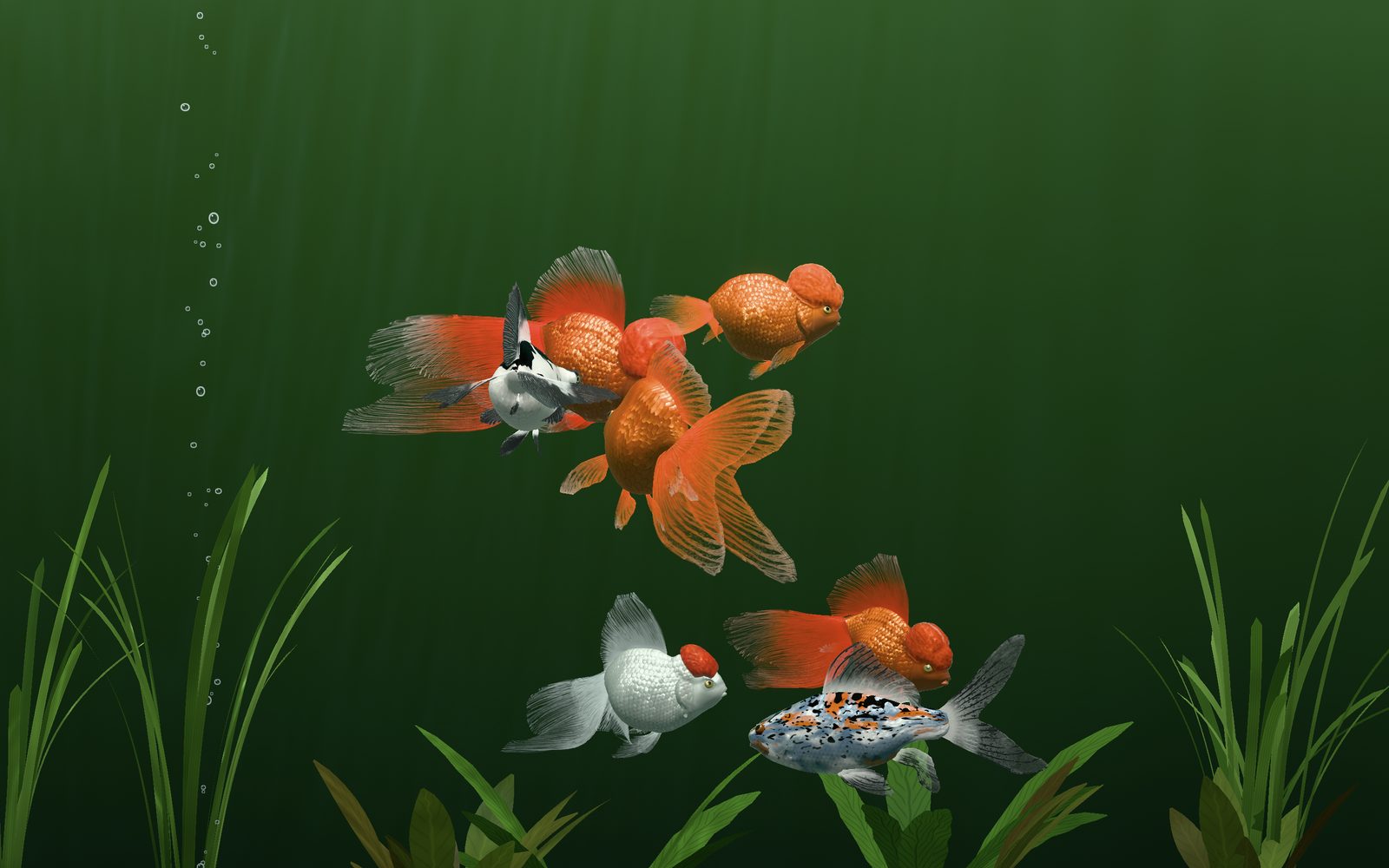
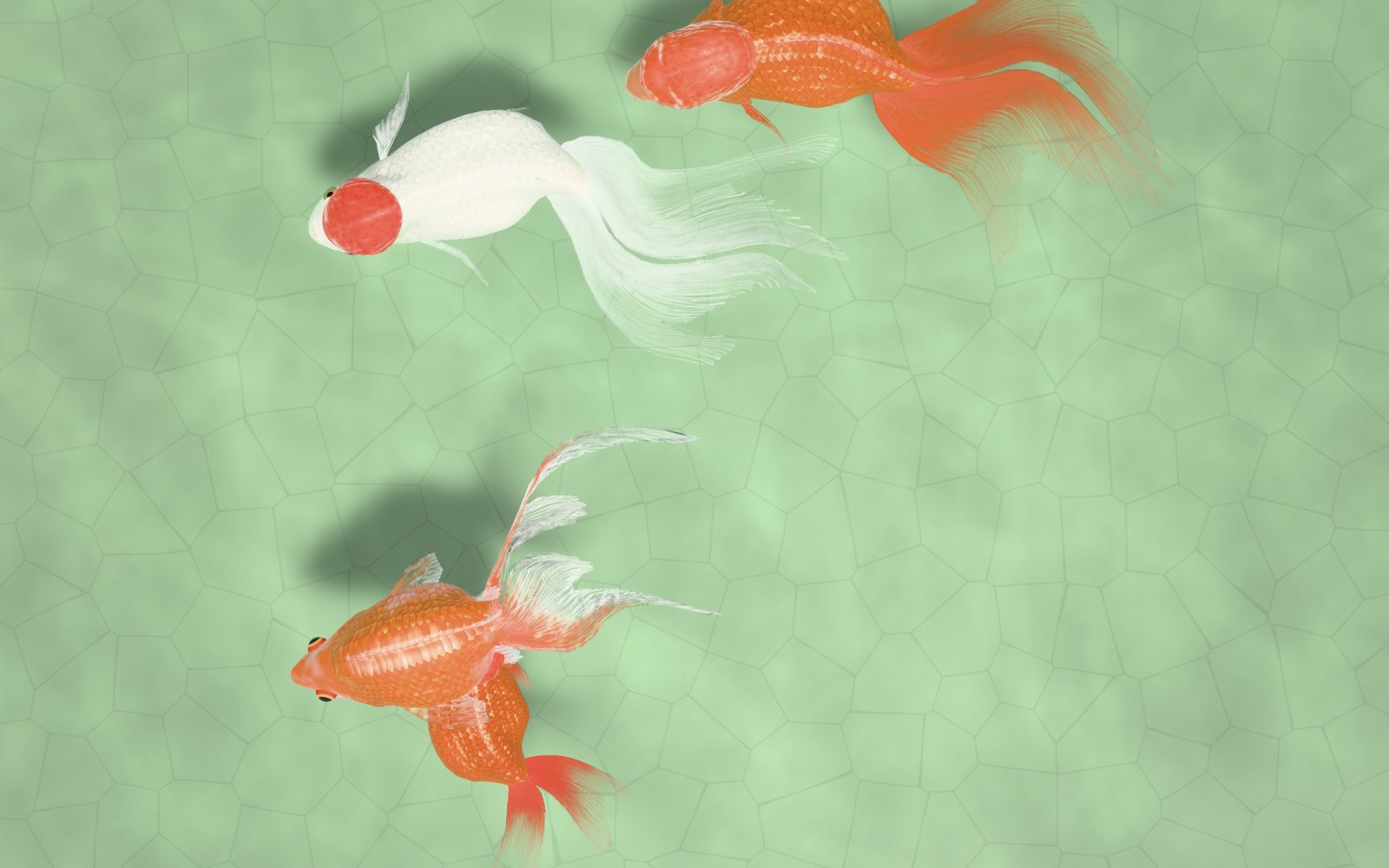
A one-time purchase on the App Store for Mac, iPhone and iPad, with no subscription and no in-app purchases.

Support
Choose Live Wallpaper from the goldfish in the menu bar, or turn it on in Settings › Desktop. The goldfish live behind your desktop icons on every display and Space. To keep the pointer from stirring the water, turn off Settings › Interaction › Ripples follow the pointer.
Turn on Screen saver mode in Settings › Desktop and choose how long your Mac waits, or choose Start Screen Saver from the goldfish in the menu bar. Any key or mouse movement brings you back. It runs inside the app, so there is nothing to install in System Settings.
On the Mac, move the pointer to stir the water, click to drop a pebble and double-click to feed the goldfish; rest the pointer over the water and they come up to beg. On iPhone and iPad, draw a finger through the water, tap to drop a pebble, tap twice to scatter food, hold a finger still to call them and pinch to make them larger or smaller. Settings › Interaction lists every gesture and key.
Yes. Choose From the Side in Settings › Tank, and the goldfish swim in a glass aquarium, their sides, faces and tails lit by the lamp above. Rest the pointer or a finger on the glass and they come to beg; click or tap to knock on the glass, and double-click or tap twice to drop food that sinks.
Open Settings › Wallpaper, tap Another Moment until you like the picture, then tap Save to Photos. In Photos, open the picture, tap the Share button and choose Use as Wallpaper. Lucky Goldfish only asks to add photos; it never sees your library.
Tap the moon button, choose when the night light turns off and how dim the goldfish glow, then tap Start Night Light. The goldfish keep the screen on with a softer glow; when the time is up, the sound fades away, the picture darkens over half a minute and the device locks as usual. Touch the dark screen to wake the goldfish.
Yes, once you turn on Settings › Sound › Play when locked. The rain, the water and the crickets then go on while the screen is locked or another app is open, alongside your music. Turn the sound off, or let the night light end it.
Choose the vessel or the aquarium, the goldfish and the time of day you like, then save them in Settings › Scenes. On the Mac, switch between scenes there or from the goldfish in the menu bar; on iPhone and iPad, with the Scenes button over the water.
Lucky Goldfish draws with Metal, paints what never changes only once, and stops completely whenever the goldfish cannot be seen. On a Mac on battery power it uses less energy, and Settings › Energy can also pause the wallpaper on battery or lower the frame rate. On iPhone and iPad it lowers its frame rate and quality by itself in Low Power Mode or when the device warms up.
It opens at login only if you turn on Open at login in Settings › Desktop. While the wallpaper or screen saver mode is on, closing the window leaves the goldfish in the menu bar; choose Quit Lucky Goldfish there to stop everything.
Macs with macOS 14 Sonoma or later, with Apple silicon or an Intel processor; iPhone with iOS 16 or later, from the iPhone 8 on; and iPad with iPadOS 16 or later.
No. One purchase covers Mac, iPhone and iPad: buy Lucky Goldfish once with your Apple Account, and download it on your other devices at no extra cost.
English, Simplified Chinese, Traditional Chinese and Japanese.
Privacy
Effective October 27, 2026
Lucky Goldfish does not collect any data. It has no account, no advertising, no analytics and no network access, so nothing you do in the app leaves your device.
As the app collects nothing, there is nothing to share, sell or delete, for adults and children alike. Should this ever change, this policy and the privacy details on the App Store will be updated first.
Questions about privacy: gicpic@gmail.com